Get to know the SEPA Ruralvía converter: guide to generating XML files without errors
2026-01-31
If you manage payments or collections with Ruralvía, you probably already know that the bank requires a very specific format: SEPA XML. A SEPA converter for Ruralvía is simply the tool that saves you from this headache, converting your Excel, CSV or even legacy formats like AEB into an XML file that the bank will accept without issues. This is not just a convenience; it is the way to avoid manual errors and ensure your batches are processed first time, without delays or returns.
Do I really need a SEPA converter to work with Ruralvía?
The short answer is yes. When you work with Ruralvía, the online platform of Caja Rural, you face a golden rule: all transfer or direct debit files must be uploaded in SEPA XML format. For many SMEs, self-employed professionals and accounting firms, this is a real barrier. The norm is to have the data in a spreadsheet, a simple Excel or CSV with the list of payments to suppliers or receipts from customers.
You could try to create that XML file by hand. But trust me, it is a path full of pitfalls. The XML structure is incredibly strict. A tiny detail—a tag that is not closed properly, a date in the wrong format or a special character in the wrong place—will make Ruralvía reject the file instantly. The result? Delays in payments, cash flow issues and a good dose of frustration while you try to work out what went wrong.

A specialised tool simplifies all of this incredibly. As you can see, the idea is as simple as uploading your usual file and letting the platform take care of the “black magic” of generating a perfectly validated XML. In this case, automation is the only practical solution to avoid wasting time.
The key to keeping your banking operations flowing
Think of a SEPA converter for Ruralvía as an expert translator. It takes your spreadsheet, which only you and your team understand, and converts it into the strict technical language that the bank’s system speaks. Its job is to ensure that every piece of data, from the customer’s IBAN to the invoice description, is placed exactly where it should be according to SEPA regulations.
The advantages of using such a tool are clear from day one:
- You save a huge amount of time: What used to take hours of checking cells and tags is now done in seconds.
- You forget about silly errors: Automatic IBAN validations, for example, catch incorrect accounts before you send anything to the bank. This saves you fees and the hassle of managing returns.
- You sleep easy with regulations: The converter is always up to date with the latest SEPA standards. One less thing to worry about.
Since SEPA was introduced, the way payments are managed in Spain changed completely. In fact, in 2023 alone over 12 billion transactions were processed, and a large part of this volume is handled precisely by SMEs. Tools like ConversorSEPA have been essential in this transition, as their automatic validations prevent up to 95% of the most common errors that end in a bank rejection.
In short, using a SEPA converter is not a technological whim but an operational necessity for any business that works with Ruralvía. It lets you focus on what matters—managing your money—and not on the technical small print, ensuring your company’s cash flow is predictable and does not stop because of a file error.
Comparison of conversion methods for Ruralvía
To better understand the impact on day-to-day work, especially for an SME that manages its collections and payments through Ruralvía, this table compares the two ways of creating SEPA files.
| Feature | Manual conversion with Excel | Using a SEPA converter |
|---|---|---|
| Time required | Hours. Depends on complexity and number of records. | Seconds. The process is practically instant. |
| Error risk | Very high. Format errors, invalid data, incorrect IBANs… | Minimal. Automatic validations that detect problems instantly. |
| Knowledge | Requires technical knowledge of SEPA XML structure. | None. The tool handles all the technical part. |
| Maintenance | You must keep up with any changes in SEPA regulations. | None. The platform updates automatically. |
| Real cost | The hidden cost of time lost and return fees. | A low subscription cost, paid off from the first use. |
| Flexibility | Limited. Adapting templates to new file types is complex. | High. Accepts multiple source formats (Excel, CSV, AEB…). |
As you can see, although manual conversion may seem “free”, the cost in time, errors and stress far exceeds the small investment of a specialised tool. For an SME, efficiency is everything.
How to prepare your Excel file for a perfect conversion
The secret to generating an XML file for Ruralvía without hitches is not in the converter but in the document you start with. A well-organised Excel or CSV is the best guarantee that the whole process will run smoothly and your batch will validate first time.
Bear in mind that most rejections when uploading the file to online banking come from small details that slip through in the spreadsheet. Fortunately, fixing them is easier than it seems if you know what to look for.
The ideal structure for your batch file
Your Excel file is basically the skeleton of your batch. If the base is not solid, everything else gets complicated. For the Ruralvía converter to read the information without hesitation, you need a clean, logical column structure.
The golden rule is simple: each row must be a single operation (a payment or a collection) and each column a specific piece of data for that operation. You can name the columns whatever you like; what matters is that the information is not mixed up.
Certain columns are essential and cannot be missing:
- Account holder name: The full name of the person or company.
- IBAN: The bank account, always without spaces or hyphens.
- Amount: The amount, in a simple numeric format.
- Description: A short description, such as “Invoice FEB-2024” or “Member fee 123”.
- Execution date: The exact day on which you want the operation to be processed.
Having this clear from the start will save you a lot of time correcting things later.
Data cleaning: the common errors that block Ruralvía
Let’s get practical. Certain data formats are poison for Ruralvía’s system and will get you an immediate rejection. Before converting anything, give your file a good once-over to catch and correct these typical mistakes.
The number one problem is usually amounts. It is very common for accounting software to export figures with the euro symbol (€) or using a point for thousands (e.g. 1,250.50 €). The SEPA XML format is very strict: it only accepts numbers with a decimal comma. Nothing else.
Practical tip: Use Excel’s “Find and Replace” (Ctrl + H) to remove all “€” symbols and thousands separators from the amount column. It’s a ten-second job that will save you a lot of headaches.
Another critical point is dates. Although we are used to writing them as ‘DD/MM/YYYY’ (e.g. 25/10/2024), the SEPA standard requires the format ‘YYYY-MM-DD’ (e.g. 2024-10-25). A date in the wrong format means a certain rejection.
To fix it in Excel, the process is very quick:
- Select the entire date column.
- Right-click and go to “Format Cells”.
- In the “Number” tab, choose “Custom”.
- In “Type”, enter exactly YYYY-MM-DD and click OK.
Trust me, these two adjustments to amounts and dates fix nearly 80% of the most common format errors.
Excel tricks to get your file ready in minutes
Sometimes the data we receive is not as tidy as we would like. Perhaps an old system has exported the name and IBAN together in the same cell, or you run into odd characters that could cause problems in the XML.
If you come across grouped data like “John Smith ES87…”, Excel’s “Text to Columns” will be your best friend. It lets you split one column into several using a separator, such as a simple space.
Also watch out for special characters like accents or the letter ‘ñ’ in key fields. Although XML accepts them, bad encoding when exporting the file can cause errors. As good practice, review the file and simplify descriptions if you think they may contain problematic characters.
Mastering these small cleaning techniques will let you turn a “dirty” file into one ready to convert in minutes. If you want to go a step further, I recommend learning how to correctly convert an Excel file to CSV, as this format usually gives fewer compatibility issues.
Generating your XML file step by step
If you already have your Excel file clean and organised, trust me, you have got through the most tedious part. Now comes the interesting bit: let’s see how ConversorSEPA turns that spreadsheet into a valid XML file for Ruralvía in just a few seconds. The process is designed so that anyone can do it, without needing to be a computer expert.
The idea is very simple: you upload your file and “explain” to the tool what each column means. It’s as if you were saying: “Look, this column that in my Excel is called ‘Customer Account’ is what you need as ‘Debtor IBAN’”. This step, known as mapping, is the secret to getting it right first time.
This workflow—organise, clean and convert—is the basis for managing your SEPA batches without headaches.
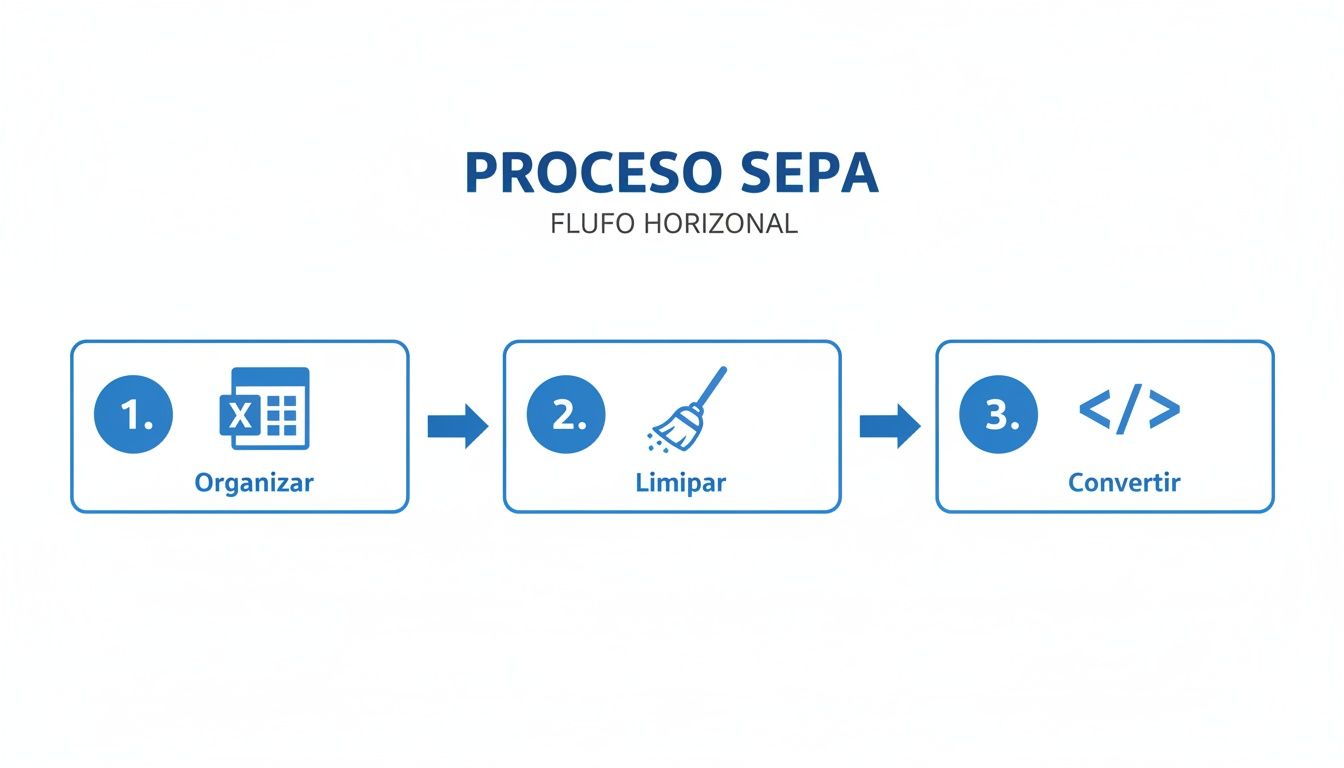
As you can see in the diagram, good preparation makes the last step, conversion, a simple formality, fast and error-free.
The column mapping process
As soon as you upload your file to the platform, you will see the mapping interface. On one side you will see the column names from your Excel; on the other, the fields required by SEPA regulations. Your only task is to connect one with the other.
Imagine your spreadsheet looks like this:
- Recipient: Your customer’s or supplier’s name.
- Account No.: The full IBAN.
- Invoice Total: The amount to collect or pay.
- Invoice Ref.: The description you want to appear on the bank statement.
In the tool, you just need to associate each of these fields with its official SEPA equivalent, such as “Debtor Name”, “IBAN”, “Amount” and “Transaction Description”.
A time-saving trick: The platform has memory. Once you map a file type, the tool remembers it for next time. If you upload a file with the same structure again, the mapping will be done automatically! This is gold if you manage batches on a recurring basis.
Configuring the key details of your batch
As well as telling it what each column is, you need to define some key data so that the XML file is valid in Ruralvía. These tell the bank exactly what type of operation you are sending.
The most important are:
- SEPA Creditor Identifier: This is like your ID for issuing direct debits. A unique code that identifies you across the European banking system. It is essential that you enter it correctly, because Ruralvía will check it to confirm you are authorised to issue collections. If you don’t have yours yet or want to verify the format, our SEPA Creditor Identifier tool walks you through the country-specific structure step by step.
- Direct Debit Type: Here you decide whether the batch is CORE, for direct debits from individuals and self-employed, or B2B, for business-to-business operations. The difference is crucial: B2B direct debits have much shorter return periods and the debtor cannot reject them without a justified reason.
- Payment Sequence: With this you indicate whether it is the first time you are collecting from a customer (FRST - First) or a recurring collection (RCUR - Recurrent). Getting this right is vital for proper SEPA mandate management.
These settings are configured once per batch and ensure the file meets everything Ruralvía will ask for.
Automatic validations that save you from errors
This is where a good SEPA converter for Ruralvía makes the difference. While you are mapping and configuring, the tool works in the background, checking your data for problems before they become bank returns.
The most critical validation is IBAN. The system checks two things: 1. Structure: It verifies that the IBAN has the correct format for its country (length, characters, etc.). 2. Check digit: It performs a mathematical calculation to confirm that the account number does not have a typo or is simply made up.
If the tool detects an invalid IBAN, it will warn you immediately, pointing to the exact row with the error. So you can correct it in your original Excel and upload again, avoiding generating an XML that the bank would reject straight away.
But it doesn’t only look at the IBAN. The converter also checks that amounts are valid numbers and that dates are in the correct format. This proactive security layer is what sets a professional solution apart, saving you the cost and administrative hassle of returns. If you want to go deeper into how to prepare these files, you can learn more about converting transfers from CSV to a SEPA XML file.
How to upload the file to Ruralvía and fix the most common errors
You now have your XML file ready. The last step is to log in to Ruralvía, Caja Rural’s online banking, and send the batch so the bank can process it. Although it seems straightforward, knowing exactly where to click and, above all, what to do if something fails will save you a lot of headaches.
This is the moment of truth, when Ruralvía’s system checks that your file meets all its technical requirements. Sometimes a small oversight can stop the whole process, but don’t panic: most problems have a fairly clear solution.

Let’s see step by step how to upload the file and, more importantly, how to interpret and fix the typical error messages you may see.
Where is the option to send files?
Once you have logged in to Ruralvía, you need to find the section for company file management. The exact name may vary slightly depending on your caja rural, but you will almost always find it under a heading like:
- Files
- Batch Management
- SEPA File Upload
Look for a button that says something like “Send file” or “Upload batch”. When you click it, the usual file selection window will appear. Choose the XML you have just downloaded from the SEPA converter, attach it and follow the steps to sign the operation digitally. Done!
The most common errors and how to fix them straight away
What if after uploading the file Ruralvía returns an error? First, don’t panic. It’s more common than you think and the solution is usually very straightforward. Here are the most frequent problems and what to do in each case.
1. “Incorrect file format” or “Invalid file”
This is the star error, the most generic and the one we see most often. Basically, it means there is something in the XML structure that Ruralvía’s system doesn’t like.
- Most likely cause: It almost always comes from data that wasn’t fully clean in the original Excel. Check the amounts column carefully to make sure you haven’t left any euro symbol (€) or thousands separators. Another critical point is dates: they must be in YYYY-MM-DD format.
- Quick fix: Open your Excel file. Go to the amount and date columns and use “Find and Replace” to remove any character that isn’t a number or decimal comma. Once clean, generate the XML again and upload it again.
2. “Invalid creditor identifier“
This message is much more specific. It points directly to a problem with your “registration” as a SEPA receipt issuer.
- Most likely cause: Either you have mistyped the Creditor Identifier in the converter settings, or the tax ID of that identifier does not match the account you are trying to send the batch from.
- Quick fix: Open the XML file with a text editor (Notepad will do) and search for the tag
<Id><PrvtId><Othr><Id>. The code inside must be exactly your identifier. If it’s wrong, correct it in the converter settings and generate another file. If the code is correct, then the problem is at the bank. Call your Caja Rural manager and ask them to verify that your company’s tax ID is correctly linked to that identifier in their system.
An interesting detail: SEPA regulations do not require the recipient name and the IBAN holder to match 100%. The system relies on the IBAN. However, new regulation is being pushed so that banks show an alert if they don’t match, as an extra measure to prevent fraud.
3. “Delegated signature not configured” or “User without permissions”
If you get this error, you can breathe easy, because your XML file is fine. The problem here is your user’s permissions within Ruralvía.
- Most likely cause: The person who has logged in does not have the authorisation needed to send or sign batches. This is common in companies with several users, where only some have the power to perform operations.
- Quick fix: There’s no option but to contact your Caja Rural manager. Explain the error and ask them to review your user’s permissions to enable “delegated signature” or batch upload privileges. Once they do, you will be able to upload the same file with no problem.
Knowing how to identify these errors is key. With the most common causes in mind, what seems like an insurmountable block becomes a problem you can solve in minutes, ensuring your collections and payments arrive on time.
Full automation and integration with the API
When your business volume grows, uploading files by hand stops being practical. However fast the converter is, if you manage hundreds of supplier payments or thousands of receipts a month, you need more. You need to automate. This is where API integration makes the difference.
The idea is simple: connect your invoicing software, your ERP or any in-house system directly to the SEPA converter for Ruralvía. That way, XML files are generated on their own, with no one having to intervene. Manual errors are a thing of the past and you free your team for tasks that really add value.
How does this automation work in practice?
Instead of a person logging into the website, it is your own system that talks to the converter. It sends the batch data in a format both understand and, almost instantly, receives the XML file back, already validated and ready to upload to Ruralvía.
The possibilities are huge. Think about your day-to-day:
- Your accounting software could have a “Generate and send batch” button. When you click it, the whole process would happen in the background, with no manual export or import.
- Your online shop could group pending payments to your sellers each night and create a transfer batch automatically.
- If you manage subscriptions or member fees, the system could create the direct debit batch on the 25th of each month, with no one having to remember.
It is without doubt the best way to scale your financial operations. You ensure that collection and payment flows don’t get stuck in a manual process.
A practical example: how your system communicates
To give you an idea of how simple it is technically, communication with the API is done using JSON. It’s a very light, easy-to-handle format for any programmer. Imagine you want to prepare a batch with two transfers to suppliers. Your system would simply send a request like this:
{ “tipo_remesa”: “transferencias”, “datos_remesa”: { “nombre_ordenante”: “Mi Empresa S.L.”, “iban_ordenante”: “ES8020380000001111222233”, “fecha_ejecucion”: “2024-12-15” }, “operaciones”: [ { “nombre”: “Proveedor A”, “iban”: “ES7500490000001234567890”, “importe”: “1250.75”, “concepto”: “Factura 2024-345” }, { “nombre”: “Proveedor B”, “iban”: “ES9121000000000987654321”, “importe”: “840.00”, “concepto”: “Factura 2024-346” } ] }
The ConversorSEPA API receives this information, validates each field, builds the XML file following SEPA regulations to the letter and returns it to you immediately. All your system has to do is take that file and save it or send it straight to online banking.
API integration is not just about being more efficient. It is an extra layer of security and control. By removing manual handling of banking data, you drastically reduce the risk of errors or leaks of sensitive information.
This level of automation really changes the game in treasury management. It makes your company’s financial processes run with Swiss-watch precision, predictably and without depending on repetitive tasks. It is the key piece for your systems to work in perfect harmony with current banking operations.
Common questions about the SEPA converter for Ruralvía
Even with the process clear, it’s normal for questions to come up when using a tool like a SEPA Ruralvía converter. They are the typical day-to-day doubts that, if not resolved quickly, can end up blocking an important batch.
So that doesn’t happen to you, I’ve gathered here the most frequent questions we get. The idea is to give you a handy guide to sort out those small hitches without wasting time.
Can I adapt old AEB format files for Ruralvía?
Of course. In fact, this is one of the most valuable features for companies that have been in the market for a while or still use ERPs that generate files with the old Spanish banking format.
You can take your usual files, such as 19 (direct debits), 34 (transfers) or 58 (credit advance) batches, and the tool “translates” them into the SEPA XML format that Ruralvía requires. The system knows how to read the structure of those plain text files and places each piece of data in its correct place in the new standard.
This compatibility is a lifesaver. It saves you from having to ask your software provider for an update that can be expensive and slow, or changing your internal processes just because of the bank. You keep exporting your files as usual, and the converter does the rest.
When I upload the file, Ruralvía gives me a ‘signature incorrect’ error. What does it mean?
This is without doubt one of the most confusing errors, because the solution has nothing to do with the file you have generated. If the Ruralvía website shows a message like “incorrect signature”, “user without permission to sign” or “delegated signature not configured”, breathe easy: your SEPA file is correct.
The problem is in your user’s configuration within online banking itself. Simply put, the person who has logged in to upload the file does not have the permissions needed to authorise that type of operation. It’s a very common security measure in companies with several user profiles.
How do you fix it? It’s easy, but it requires a call: 1. Contact your personal Caja Rural manager. 2. Tell them the exact error message you see. 3. Ask them to review your user’s permissions and enable “delegated signature” or batch upload privileges.
As soon as the bank makes the change, you can log in again and upload the same XML file without changing a single comma. It will work first time.
Does the tool also create SEPA mandates in PDF?
Yes, and it’s a feature that closes the full direct debit management cycle. You don’t only convert the collection file to XML; you can also generate SEPA mandates in PDF, ready for your customers to sign.
When you are preparing the data for a direct debit batch, you can use that same information to create the mandates automatically. The system fills in the key fields: debtor data, your creditor identifier and, most importantly, the Unique Mandate Reference (UMR). This way you ensure the document reference matches the one in the XML file, complying with regulations and avoiding returns in the future.
Is it safe to upload a file with so much banking data to the platform?
Absolutely. Security is not an option; it’s the foundation of everything. To start with, all communication between your computer and our servers is protected with HTTPS encryption, the same security protocol your own bank uses.
But the most important thing is our data policy. Once you upload your file, convert it and download the XML, all your data (both the original file and the result) is automatically and permanently deleted from our servers. This process takes less than 10 minutes.
This guarantees that your sensitive information is never stored. We only use it at the exact moment of conversion, ensuring absolute confidentiality and privacy.
With ConversorSEPA, turn your Excel or CSV files into valid XML for Ruralvía in seconds, avoiding errors and speeding up your treasury management. Try our tool free for 7 days and see how easy it is.
Frequently Asked Questions
- Which columns should my Excel file have for Ruralvía?
- At minimum you need account holder, IBAN, amount, reference and execution date, with one row per transaction. Use clear column names and a single date format to avoid errors when mapping fields in the converter.
- Can I convert old AEB files for upload to Ruralvía?
- Yes. A SEPA converter can read legacy formats such as Norm 19 or 34 and generate the pain.001 or pain.008 XML that Ruralvía accepts today. This lets you reuse old lists without rewriting them manually.
- Is it safe to upload my bank data to the converter?
- With professional tools, uploads are encrypted via HTTPS and files are deleted after generating the XML. Review the privacy policy and avoid keeping local copies without a password on shared devices.